 DocumentLane
Integration setup guide
What each integration does and how to set it up in DocumentLane and in the other app.
Before you start
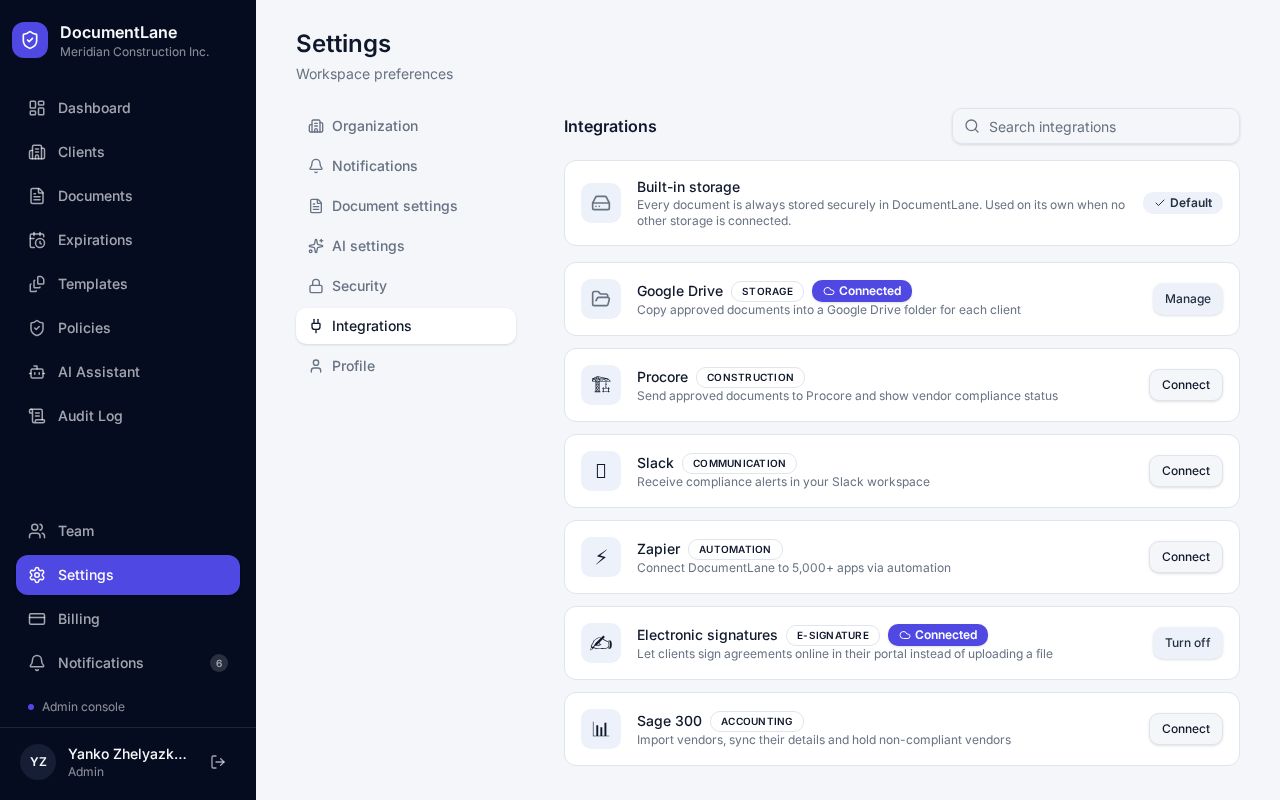
- All integrations are managed in Settings → Integrations, and only workspace admins can connect or disconnect them.
- Your documents always stay stored in DocumentLane. Integrations send copies or alerts elsewhere.
- If an integration stops working, the card shows “Last update failed” with the reason.
What each integration sends
- Google Drive: a copy of each document when it's approved (or submitted), filed by client.
- Procore: approved documents to a project's Documents area, plus a compliance status line on each vendor.
- Sage 300: vendors imported as clients, vendor details kept in sync, and non-compliant vendors put on hold.
- Slack: a channel message for the alerts you choose.
- Zapier: the same alerts as data, so a Zap can pass them to other apps.
- Electronic signatures: lets clients sign agreements in their portal (Professional plan and up).
Slack — in Slack
- 1Go to api.slack.com/apps and click Create New App → From scratch. Name it (for example, DocumentLane) and pick your workspace.
- 2Open Incoming Webhooks and switch it on.
- 3Click Add New Webhook to Workspace, choose the channel for alerts, and click Allow.
- 4Copy the webhook address. It starts with https://hooks.slack.com/.
Slack — in DocumentLane
- 1Open Settings → Integrations and click Connect next to Slack.
- 2Paste the webhook address.
- 3Turn on the alerts you want: document submitted, changes requested, expiring or expired, client registered, AI analysis finished.
- 4Click Connect. A test message is posted to the channel; the connection is only saved if it arrives.
To move alerts to another channel, create a new webhook in Slack and paste it under Manage → Webhook address.
Zapier — in Zapier
- 1Create a new Zap and choose Webhooks by Zapier as the trigger, with the Catch Hook event.
- 2Copy the webhook address. It starts with https://hooks.zapier.com/.
- 3Leave the Zap open on the Test step while you connect DocumentLane.
Zapier — in DocumentLane
Each event includes: event (document_submitted, changes_requested, document_expiring, client_registered, ai_analysis_complete, or test), title, body, url (a link into DocumentLane), organization_id and occurred_at.
- 1Open Settings → Integrations and click Connect next to Zapier.
- 2Paste the webhook address, choose the alerts to send, and click Connect.
- 3Back in Zapier, click Test trigger. You'll see the test event from DocumentLane.
- 4Add the actions you want (for example, add a row to Google Sheets or create a task) and publish the Zap.
Procore — in Procore
- Sign in with a Procore user who has access to the company and project you want to use.
- Make sure that user can add files to the project's Documents tool and edit vendors in the Directory.
Procore — in DocumentLane
- 1Open Settings → Integrations and click Connect next to Procore.
- 2Sign in to Procore and approve access. You'll come back to Settings automatically.
- 3Pick the company and project, then choose whether to send approved documents and update vendor statuses.
- 4Click Save. Use Update statuses now to refresh every vendor at once.
Vendors are matched to clients by name, so keep names the same in both systems.
Sage 300 — in Sage
- Make sure the Sage 300 Web API is installed and reachable over a secure https:// address.
- Create or pick a Sage user that can read and edit Accounts Payable vendors.
- Note your company database ID (for example, SAMLTD).
Sage 300 — in DocumentLane
- 1Open Settings → Integrations and click Connect next to Sage 300.
- 2Enter the Web API address, company ID, user name and password.
- 3Choose whether to hold non-compliant vendors and keep vendor details in sync.
- 4Click Connect. DocumentLane checks it can read your vendors before saving.
- 5Use Import vendors to add them as clients (within your plan's client limit).
The password is stored privately and never shown again. Leave it blank when editing other settings to keep the saved one.
Google Drive and electronic signatures
- Google Drive: see Copying files to Google Drive.
- Electronic signatures: see Using electronic signatures. Nothing is needed outside DocumentLane.
Disconnecting
Open the integration and click Disconnect. Saved passwords and webhook addresses are deleted. In the other app you can also delete the Slack app, turn off the Zap, or remove DocumentLane's access in Procore.
Still stuck? Email hello@documentlane.ai.