Using your client portal
For the people sending documents: how to upload and sign everything you've been asked for.
Opening your portal
You'll receive a private link by email. Open it on any phone or computer — no account or password needed. Keep the link to yourself, since anyone with it can upload on your behalf.
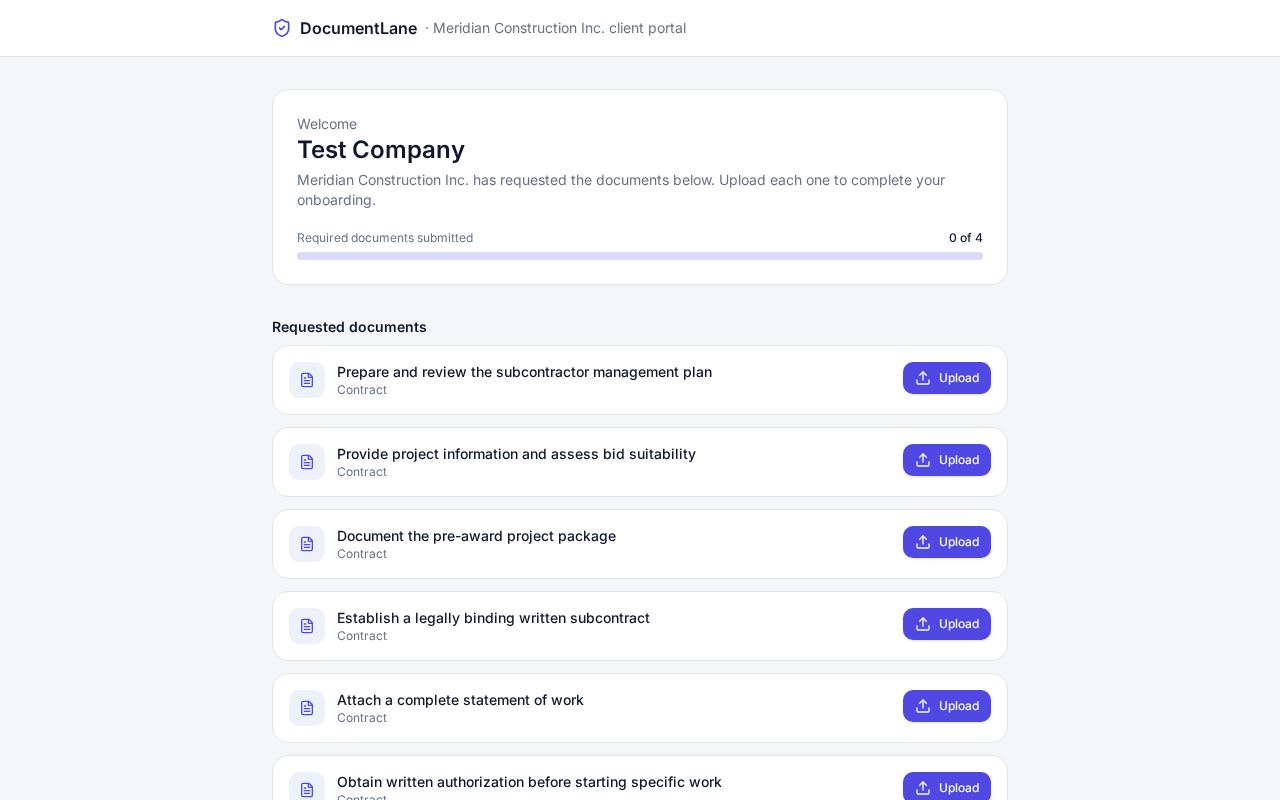
Uploading a document
- 1Find the document in the Requested documents list.
- 2Click Upload and choose the file (PDF, image, Word or Excel).
- 3Add the expiry date if asked.
- 4You'll see Submitted straight away. The progress bar shows how many required documents are done.
Upload clear, complete files. A cut-off page or a photo of a screen is the most common reason for a change request.
Signing a document
- 1Click Sign next to the document.
- 2Read it, then draw or type your signature.
- 3Enter your name and title and tick the consent box.
- 4Submit. A signed copy with an audit certificate is saved automatically.
If changes are requested
You'll get an email with the reviewer's note. Open your portal, read the note next to the document, and upload a corrected version.
Still stuck? Email hello@documentlane.com.