 DocumentLane
Creating information forms
Build a questionnaire clients fill in from their portal, saved as a PDF alongside their documents.
When to use a form
Use a form instead of a file upload when you need answers rather than a document. Good examples are a prequalification questionnaire, banking details, emergency contacts or safety history.
Create a form
- 1Open Templates, choose a template and select a requirement (or add a new one).
- 2Under what the client should do, choose Information form, then click Design form.
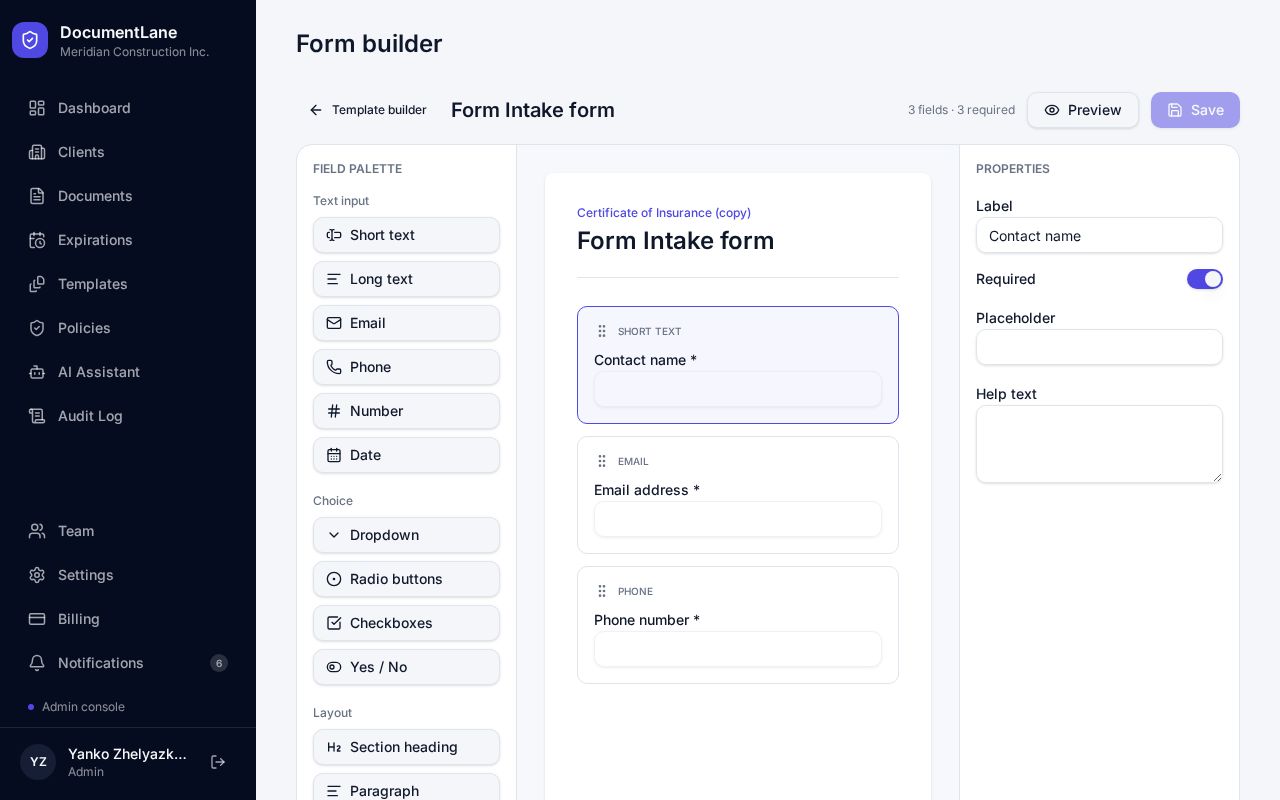
- 3Add fields from the left panel and set each one's label, help text and placeholder.
- 4Mark the questions the client must answer as Required.
- 5Click Save to go back to the template, then publish it so new clients get the form.
Field types
- Answers: short answer, long answer, email, phone, number and date.
- Choices: dropdown, choose one, choose all that apply, and yes/no. You can add up to 30 options.
- Layout: section headings, paragraphs of guidance and dividers. These don't need an answer.
A form can have up to 100 fields. Split long questionnaires into sections with headings so they're easier to fill in.
What your client sees
The form appears in the client's portal next to their other requested documents. Required questions must be answered before they can submit.
Reviewing answers
Each submission keeps the answers and a PDF copy, stored privately with the client's documents. Review it like any upload: accept, request changes or reject. If you request changes, the client can update their answers and submit again.
Still stuck? Email hello@documentlane.ai.